How to Connect Lumia Stream, Spotify & ai_licia for Your Twitch Stream

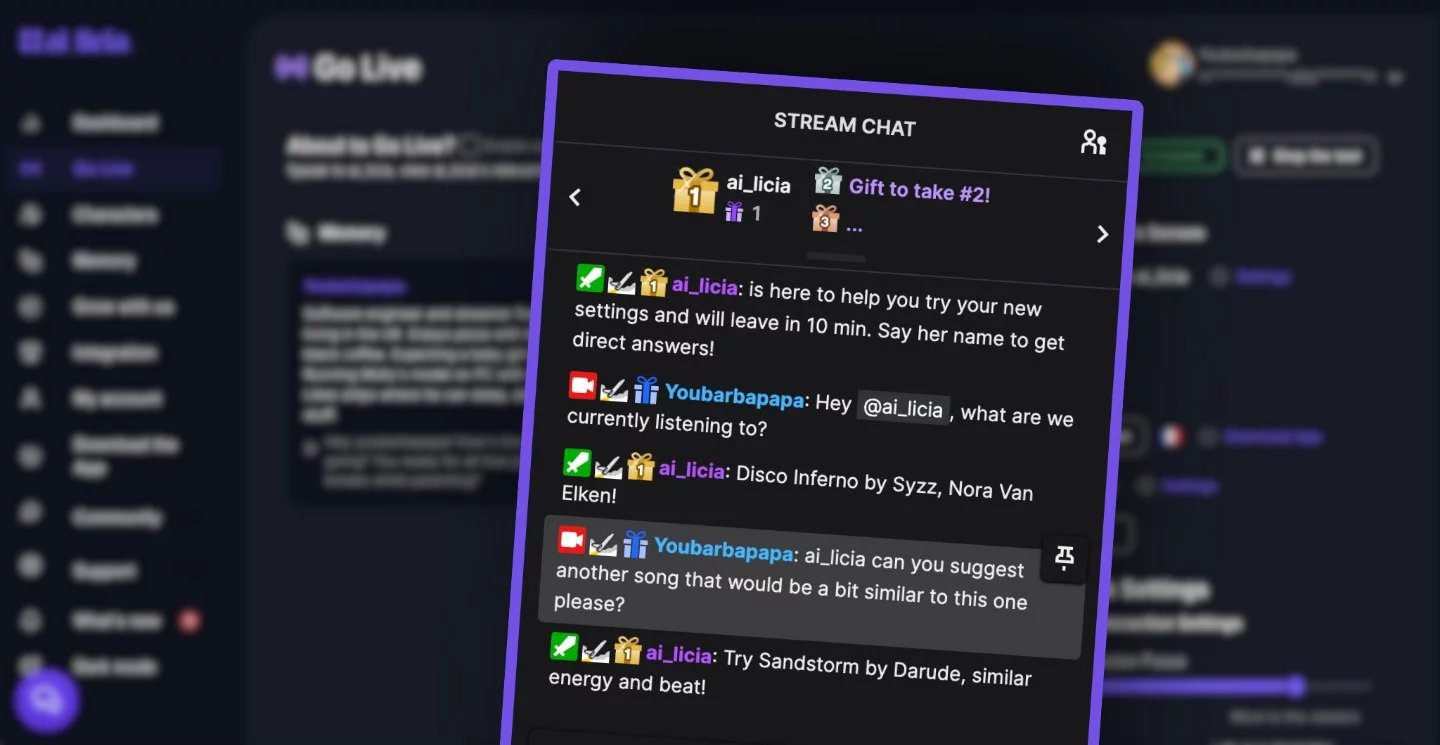
Ever wanted ai_licia to recognise the music you're playing on Spotify while streaming on Twitch? With Lumia Stream’s Spotify integration, you can automatically update ai_licia every time a song changes. This enhances viewer interaction, allows ai_licia to respond based on your music choices and creates a more immersive streaming experience.
Whether you're setting the vibe for a relaxed stream, hyping up gameplay or just hanging out with your community, this integration ensures ai_licia stays in tune with your Spotify playlist.
Why Connect ai_licia to Spotify?
Linking ai_licia to your Spotify with Lumia Stream opens up a whole new level of interaction for your Twitch channel:
- Real-Time Reactions: ai_licia can react to the mood of your stream. If you're vibing with lo-fi beats, she’ll keep it chill. Switch to high-energy EDM… and her tone will match the hype!
- Natural Song Callouts: Instead of the usual "Now Playing" bot command, ai_licia can casually mention the current song during conversations, making her feel like part of the stream.
- Music-Driven Stream Themes: Playing soft piano tracks? ai_licia could suggest winding down with a cosy Q&A. Got rock blasting? She might prompt a “Chat decides my next move” challenge.
- Jamming & Improv: Love jamming live? If you’re freestyling, riffing or improvising music on stream, ai_licia can chime in with comments or even suggest specific vibes to keep the energy flowing!
- Viewer Interaction: Viewers can ask ai_licia what song is playing, and she’ll answer instantly - no need for manual commands.
How to Set Up the Lumia Stream, Spotify & ai_licia Integration (Quick & Easy Guide)
1. Install the Lumia Spotify Plugin
- Open the Lumia Stream dashboard.
- Go to Plugins and search Spotify.
- Install the Plugin and follow the setup instruction they provide.
2. Get the ai_licia Desktop App
It will make linking your ai_licia account and your Lumia Stream App seamless. Download the App from here.
Otherwise, you can always find your Api Key and your channel name in the Dashboard on the My Account page.
3. Add the ai_licia Plugin in Lumia
- In the Lumia Stream dashboard, go to Plugins from the left menu.
- In the search bar, search for ai_licia.
- Install the ai_licia plugin.
- To activate the plugin, open the ai_licia App, and click on Auto Connect on Lumia. It will open a validation modal on the ai_licia App.
- Click on Activate.
The ai_licia plugin is now active and available to be used
4. Configure your Action
We can now connect ai_licia with your Spotify account.
Go to Alerts, and select Spotify.
It will open a menu with different options. Select Switch Song.
Edit the Switch Song base alert and selection Action.
Pick ai_licia as the source.
You now have access to the different actions available for ai_licia.
If you want ai_licia announce in chat when a new song is playing, you should pick Trigger AI Response in chat. If you want ai_licia to be aware of the currently playing song but not post a message when the song updates, you should pick Update AI Memory Context.
The configuration for both is the same:
- Add a text explaining what the song and the artist are
- (Optional) Set an expiration duration for which ai_licia will remember it. If you leave it as 0s, it will be persisted until it's updated to the next song.
5. Test the Connection
- Play any song on Youtube Music.
- Go to ai_licia’s Go Live page and make her join your stream
- In Lumia Stream, click on test.
You should see an API Request card on the left part of the Go Live page with the song name and the title.
🎉 Success! Now, every track change updates ai_licia, keeping her in sync with your stream’s vibe.
👉 Need help? Jump into the ai_licia Discord for support!
Make Your Stream More Interactive Today
With Lumia Stream, Spotify, and ai_licia working together, your Twitch stream becomes smarter and more immersive. Viewers will love how seamlessly ai_licia references your music, making every chat feel more personal and engaging.
Ready to upgrade your stream? Set up the integration today and let ai_licia keep your community in sync with your soundtrack!