The OBS AI Plugin That Watches and Reacts to Your Stream

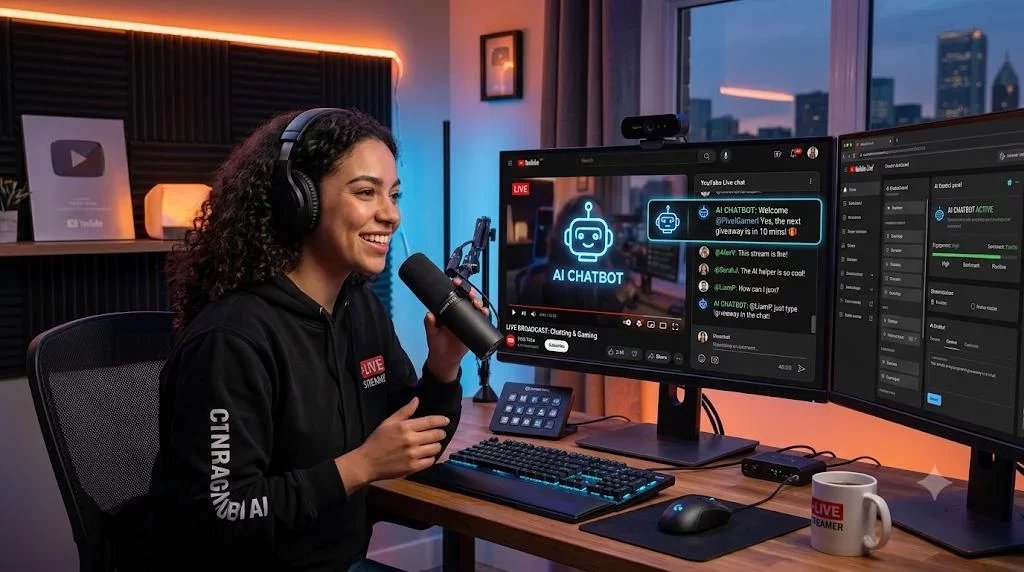
ai_licia can already read chat, listen to you and react to events happening across your stream.
With Vision, she can also see what your viewers see.
Now, the new ai_licia Vision plugin makes connecting Vision to OBS easier than ever. Instead of manually configuring an additional streaming destination, copying stream keys or adjusting technical video settings, ai_licia can prepare OBS for you and guide you through the entire setup.
Once connected, ai_licia receives a lightweight copy of your OBS output and can react to gameplay, on-screen text, your camera and the unexpected moments that make live streaming entertaining.
Your regular Twitch, YouTube or Kick broadcast stays exactly where it is. Vision runs separately alongside it.
When Your Co-Host Can Actually See the Stream
A normal chatbot only knows what people type.
That means it can miss some of the best moments on your stream: the enemy standing behind you, the failed jump you hoped nobody noticed or the expression on your face when a horror game opens the wrong door.
Vision gives ai_licia the missing context.
She can use what appears on screen to:
• Comment on gameplay
• React to wins, failures and unexpected moments
• Notice visual changes in your stream
• Understand visible menus, objectives and results
• Read and translate on-screen text
• Comment on your outfit, cosplay or background
• Answer questions about what is currently visible
• Combine visual context with chat and your character’s personality
Instead of producing generic messages, ai_licia can respond to the moment your viewers are experiencing with you.
Picture This: A Horror Stream Goes Wrong
You are playing a horror game with headphones on and the volume turned far too high.
You slowly enter a dark room. Chat has already spotted something moving behind the character, but you have not.
ai_licia sees it too.
Your carefully configured “supportive” co-host announces:
“There is absolutely nothing behind you. You should definitely keep walking.”
You turn around, the monster attacks and the entire stream erupts.
Without Vision, ai_licia would only understand the moment after chat started reacting. With Vision, she can become part of the setup, the scare and the punchline.
That reaction can then become a clip with a simple story:
- The viewers see the danger.
- ai_licia sees the danger.
- The streamer remains confidently unaware.
- Everything goes terribly wrong.
The same idea works beyond gaming.
During a cooking stream, ai_licia could notice that something is starting to burn. During an art stream, she could comment on a new part of the illustration. During a fashion or cosplay stream, she could review the final look, with exactly as much kindness or chaos as you put into her personality.
Your Personality Still Leads the Experience
Vision does not turn ai_licia into a generic commentator.
Her reactions continue to follow the character you created.
A supportive character might congratulate you after spotting a difficult boss defeat. A competitive teammate might insist she could have done it faster. A chaotic character might immediately side with chat after seeing your latest mistake.
This is where Vision becomes more than gameplay recognition. It gives your character opportunities to build running jokes, react naturally and develop a recognisable relationship with your community.
The result feels less like a bot analysing screenshots and more like another person watching the stream alongside your viewers.
A Simpler Way to Connect Vision to OBS
Previously, using direct streaming with Vision meant configuring a second stream output manually. OBS users often needed a separate multi-streaming solution, along with the correct resolution, frame rate and keyframe settings.
The ai_licia Vision plugin handles this connection directly inside OBS.
The plugin:
• Creates an isolated secondary output for Vision
• Preserves your existing platform, profile and streaming settings
• Starts and stops Vision alongside your normal OBS stream
• Automatically prepares video settings suitable for Vision
• Reuses your existing encoder when it is compatible
• Creates a lightweight dedicated encoder when necessary
• Reconnects Vision independently if its connection is interrupted
• Keeps Vision problems isolated from your public broadcast
Your main stream still travels directly from OBS to Twitch, YouTube, Kick or your chosen platform. ai_licia does not relay or replace that broadcast.
If Vision encounters a problem, your public stream continues normally.
Test Everything Without Going Live
Nobody wants to discover a setup problem five minutes into a live stream.
The plugin includes a standalone Vision test that sends your OBS output to ai_licia without starting your public broadcast.
This lets you confirm that:
• The plugin is installed correctly
• ai_licia can see your OBS scene
• The Vision connection is active
• Your video settings are suitable
• Your account is connected properly
You can even ask ai_licia a simple question about what is on screen to confirm that she understands what she is seeing.
Once the test passes, you can start your next stream as usual.
Built Around Your Existing OBS Setup
The Vision plugin is designed to stay out of the way.
It does not replace your primary streaming destination or rewrite the settings you already use for your public stream. If your existing encoder is suitable, the plugin can reuse it. If different settings are needed, it creates a separate temporary encoder for Vision without overwriting your saved OBS profile.
Plugin updates are prepared automatically and only applied while OBS is closed. ai_licia will never close OBS or interrupt an active stream to install an update.
Vision requires some additional upload bandwidth and may require extra encoding resources, depending on your existing settings. However, the dedicated Vision output is intentionally lightweight, typically targeting a lower resolution and frame rate than your public broadcast.
How to Set Up the Vision Plugin
Setting up Vision takes only a few steps:
- Open the ai_licia desktop app.
- Go to the Go Live page.
- Open Vision Settings.
- Select Set up OBS for me.
- Close OBS and choose Install Vision.
- Reopen OBS and find the ai_licia Vision panel.
- Select Auto-configure.
- Approve the connection in ai_licia Desktop.
- Start a standalone test and choose Check Vision.
The standalone test does not start your Twitch, YouTube or Kick stream.
After the one-time connection, the plugin can handle normal Vision starts and reconnections without asking you to repeat the setup every time.
Alternative direct-streaming and virtual-camera methods remain available for creators who do not use a supported OBS installation.
You Control What ai_licia Sees
Vision receives the scene produced by OBS, giving you control over what is included.
If a source is not visible in the scene sent to Vision, ai_licia cannot see it. You can also stop Vision at any time from the OBS panel.
This makes it possible to design scenes specifically around the experience you want to create, whether that means sharing your complete broadcast, focusing only on gameplay or building a dedicated scene for an interactive event.
Turn What Happens on Screen Into Stream Moments
The best stream moments are rarely planned.
They happen when a game surprises you, when chat notices something first or when a simple mistake becomes a running joke for the rest of the broadcast.
The ai_licia Vision plugin gives your AI co-host the visual context to join those moments as they happen, without replacing your existing OBS workflow or putting your public stream at risk.
Install the plugin, run a safe test and let ai_licia see what all the excitement is about.
Ready to give your co-host a new sense? Get started with ai_licia.