How to Automate Clip Creation During Your Twitch Stream with ai_licia

If you’ve ever finished a Twitch stream and thought, “I know there were some great moments but I don’t want to scrub through the VOD to find them,” you’re not alone.
That’s where ai_licia comes in. With the right setup, you can create Twitch clips on command during your live stream just by speaking. No hotkeys, no stream deck, no frantic clicking while you are busy with your content.
In this guide, we’ll set up automated clip creation using ai_licia’s Actions, and specifically the “Clip it” action inside the Twitch - Producer bundle.
What are ai_licia Actions?
ai_licia can be used for automation thanks to “ai_licia’s actions.”
Actions are basically tasks you can trigger while live. As a streamer, you can vocally ask ai_licia to perform actions you’ve created yourself or imported from existing action bundles.
ai_licia provides ready-to-install bundles, and one of the most useful for stream automation is:
Twitch - Producer Bundle
This bundle includes actions for things like:
- Clipping
- Creating polls
- Starting raids
- And more!
For this tutorial, we’ll focus on the action you care about most:
✅ Clip it
How to Get Set Up
Here’s the setup flow from start to finish.
1) Install the ai_licia Desktop App
Download and install the ai_licia Desktop App for Windows or Mac.
2) Open Your Active Character
Once installed, open the app and navigate to your Active Character.
3) Go to the Actions Tab
Inside the Active Character view:
- Click Action (tab)
4) Open the Catalog Sub-Tab
Under Actions:
- Go to Catalog
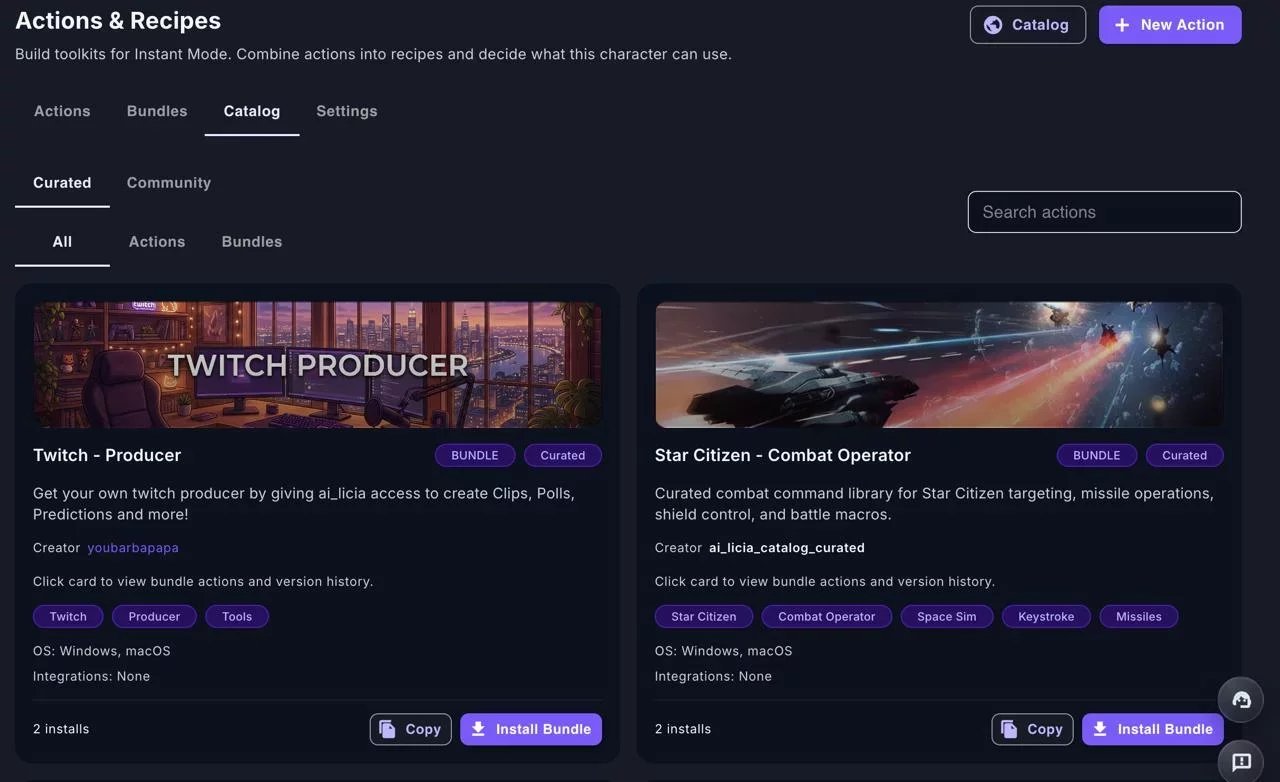
5) Install the Twitch - Producer Bundle
You should now see the Twitch - Producer bundle.
- Click Install Bundle
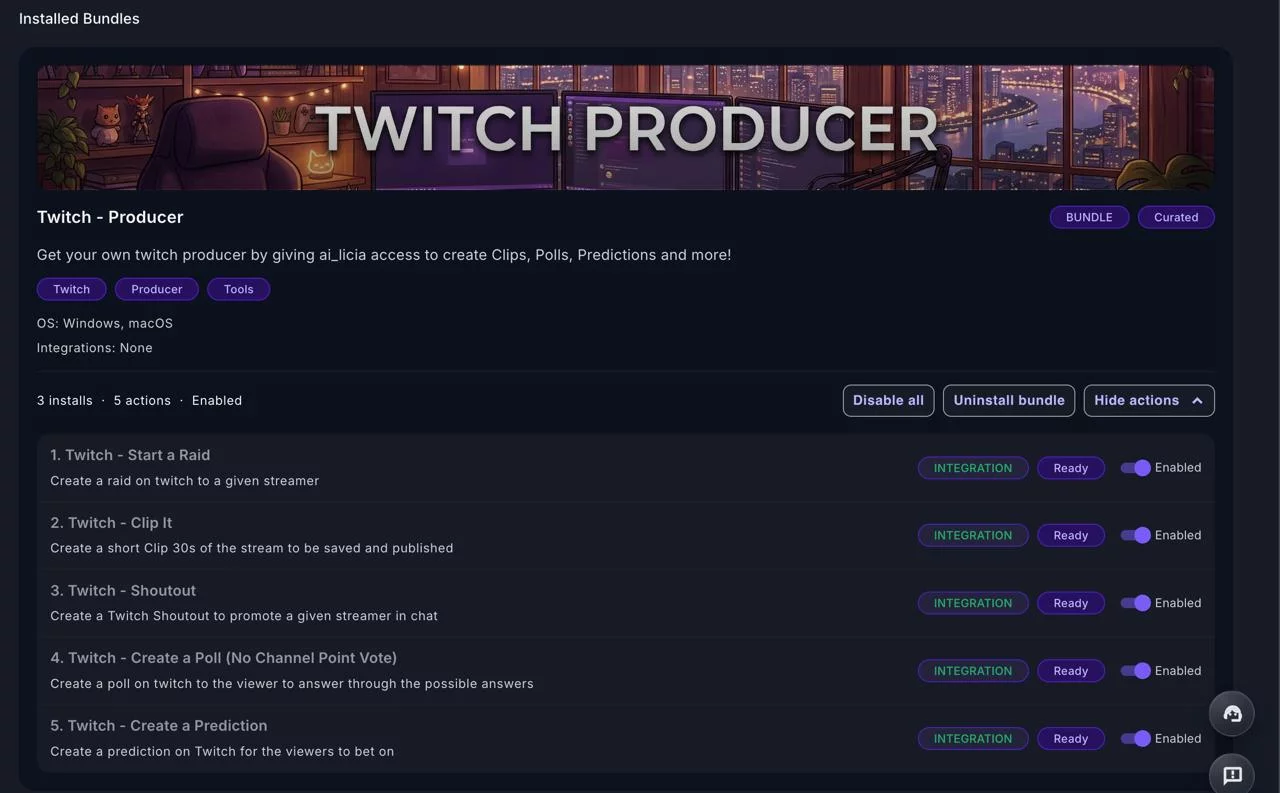
6) Confirm the Bundle Is Installed
Now go to:
- Bundles (sub-tab)
You’ll see Twitch - Producer installed, and you can browse its actions. You can disable the ones you are not interested in, or keep them all enabled, ai_licia is able to smartly decide which one to use based on what you ask her to do.
At this point, you’re ready!
How to Take Clips During Your Stream
When you’re live:
- Go to the Go Live page
- Start Speak to ai_licia
- Ask her to take a clip (for example):
- “Alicia, take a clip.”
ai_licia will:
- Create the Twitch clip
- Acknowledge that it’s done
- And you’ll then see the clip appear in your Twitch Clips section
That’s it, you can now take Twitch Clips at any time just by asking it!