Integrating ai_licia with OBS Custom Docks in 3 Easy Steps

Ever wish you could monitor your AI co-host right inside OBS Studio without juggling multiple windows? With OBS’s Custom Browser Docks, you can seamlessly integrate tools like ai_licia, the ultimate AI co-host, directly into your streaming setup. In this guide, we’ll explain what OBS docks are and how to use them, then walk you through how to have ai_licia with OBS Custom Dock in 3 easy steps to add real-time events panel as a dock in OBS. Let’s dive in!
What Are OBS Docks and Why Use Them?
OBS Docks are customisable panels within the OBS Studio interface that can display various tools or websites. By using a Custom Browser Dock, you can embed any webpage (like chat, stats, or an AI dashboard) right into OBS’s layout . This means you won’t need to Alt-Tab to your browser during a live stream, everything you need (chat, alerts, or in our case, ai_licia’s event feed) can live inside OBS. For example, streamers often dock their chat or activity feed. Here we’ll do the same with ai_licia’s Events Popup, a real-time feed of what your AI co-host is doing. The result: a more streamlined workflow where you can monitor ai_licia’s actions and your chat on one screen, ensuring you never miss a beat of engagement.
ai_licia with OBS Custom Dock in 3 easy steps
Adding ai_licia’s event panel to OBS is straightforward. We’ll use OBS Studio’s built-in custom browser dock feature to load ai_licia’s Events Popup URL. No technical wizardry required, just copy, paste, and log in. Follow these three easy steps:
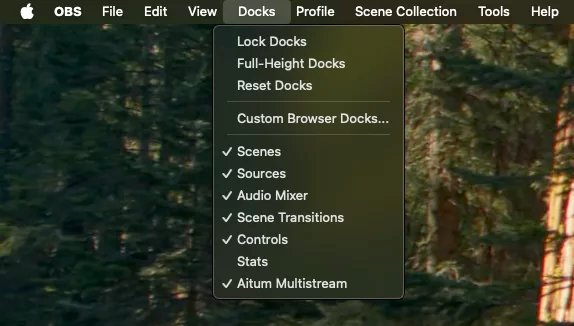
Step 1: In OBS, go to View > Docks > Custom Browser Docks…. This opens the custom dock setup dialog . In OBS’s top menu, click “View,” then hover “Docks.” From the dropdown, select “Custom Browser Docks…”. A small window will pop up where we can define a new dock. (See image above for how to access the Custom Browser Docks menu in OBS.) This feature is available in OBS Studio on Windows, Mac, or Linux, make sure you’re on a recent version of OBS so you have this option in the menu.
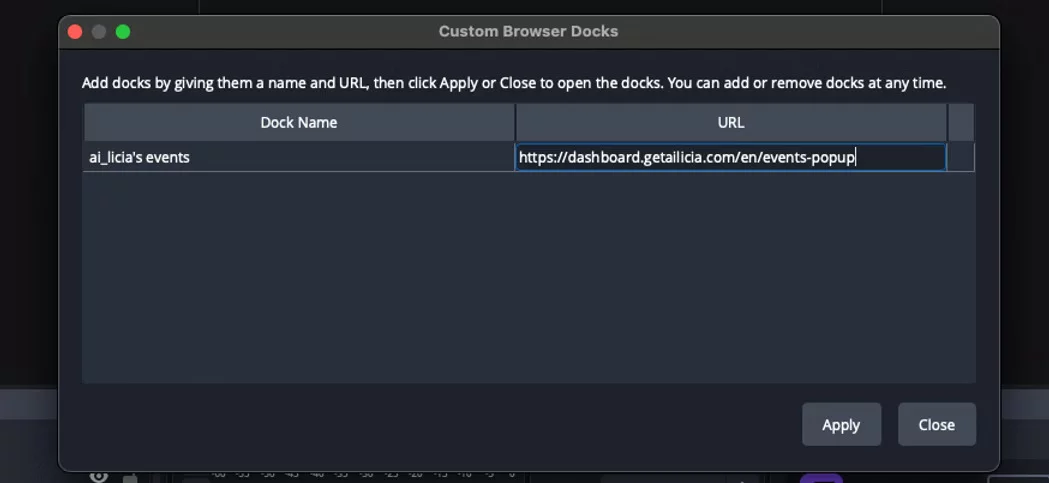
Step 2: In the Custom Browser Docks window, create a new dock for ai_licia. You’ll see two fields: Dock Name and URL. In the Dock Name field (left column), type something like “ai_licia Events”, this is just a label, so you know what the panel is. In the URL field (right column), paste the ai_licia events popup link: https://dashboard.getailicia.com/en/events-popup/. Double-check for typos (better yet, copy-paste the URL exactly). Now, click Apply, then Close . OBS will attempt to load that URL in a new panel. At first launch, the panel may appear blank or ask for a login, that’s normal. (The screenshot above shows the Custom Browser Docks dialog where we’ve added a dock name and URL.)
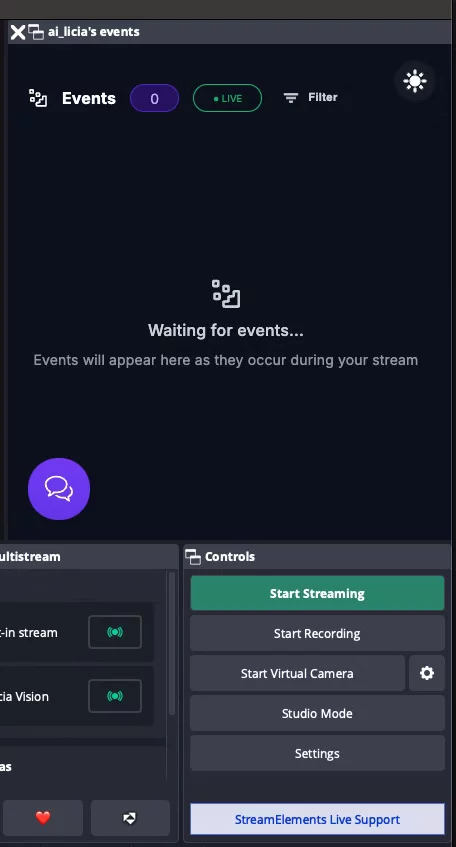
Step 3: Log in to ai_licia’s dashboard in the new dock panel and start using it. Once you hit Apply, OBS should display a new window/panel labeled “ai_licia Events” (or whatever name you gave it). If you’re not already logged in to ai_licia, the panel will show the login screen. Simply enter your ai_licia account credentials inside the dock panel (it’s an embedded browser). After logging in, you’ll see the ai_licia Events feed updating in real-time from OBS directly. This feed lets you follow everything ai_licia is doing: from greeting new followers to responding to chat or triggering commands. You can drag this dock panel and snap it into your OBS layout wherever you prefer , for example, dock it next to your Chat or under your Scenes for easy monitoring . (In the image above, a custom dock has been added to OBS, yours will show ai_licia’s event log once logged in.) Congratulations, you’ve added your first OBS dock! 🎉
Why ai_licia + OBS Docks Are Great for New Streamers
If you’re a beginner or “non-tech savvy” streamer, this setup is especially beneficial. Here’s why:
- Easy Setup, No Coding: As we demonstrated, integrating ai_licia into OBS is as easy as copy-pasting a URL and logging in. There’s no need to run additional programs, no coding, and no fiddling with complicated configs. ai_licia’s platform handles the heavy lifting, OBS just displays the interface. Even on TikTok, which traditionally had no support for chatbots, ai_licia works through their provided app and dock, so “no complex setup to make it work” . This means that even if you’re not tech-savvy, you can get a smart co-host running in minutes.
- All-in-One Stream Management: For a newbie streamer, juggling engagement and production is tough. By docking ai_licia’s panel in OBS alongside your chat, you create a single dashboard for stream management. You’ll see ai_licia’s live thoughts and actions (for example, what she’s saying or which viewer she’s greeting) right next to your normal OBS controls. This helps you learn the rhythm of engaging with chat, you can literally follow ai_licia’s lead! If chat goes quiet, ai_licia might spark a topic, which you can pick up on. If you miss a question, ai_licia might have answered it or at least highlighted it for you. Essentially, she helps drive the conversation and keep viewers engaged during quiet times , which is a common struggle for new streamers. Seeing her output in OBS in real time builds your confidence and situational awareness as a host.
- Engagement on Twitch and TikTok: Today’s streamers often branch out to multiple platforms. The good news is ai_licia has you covered on the big ones, she’s built for Twitch and TikTok Live. You can mention during your stream that you have an AI co-host, it’s a great conversation starter and a way to stand out. Viewers might ask “Who’s Alicia?” when they see her chatting, and that gives you a chance to explain and create a unique identity for your channel. Plus, ai_licia’s presence on TikTok Live is groundbreaking (since TikTok has no native chatbots), it can give you an edge in audience interaction on that platform. She’ll remember fans across platforms, helping transfer your community from one platform to another (e.g., TikTok viewers who come to your Twitch or vice versa). This unified co-host helps grow your community holistically.
- Adds Professional Polish: Even if you’re just starting out, having ai_licia in your stream can make your production feel more professional and dynamic. Her timely reactions, the text-to-speech voice quips, and the fact that you have an interactive “team” on stream can impress viewers. It’s like instantly having a mod + entertainer + assistant, all in one, for a fraction of the effort and cost. This can help small streamers punch above their weight in terms of viewer retention and entertainment value. And because everything is customizable, you can craft ai_licia’s personality to fit your brand, whether that’s wholesome and friendly or spicy and sarcastic.
- Continuous Improvement: ai_licia’s team is constantly adding new features (like the Vision update, new voice options, command integrations, etc.), which you’ll get to leverage as you grow. By keeping the ai_licia Events dock in OBS, you’ll also see any new types of events or notifications they introduce in the future. It’s a set-and-forget upgrade to your workflow, once the dock is in place, any improvements on ai_licia’s side automatically reflect there. For example, if a new kind of viewer interaction is added (say, integration with a new game or a new social platform), you might start seeing those events in the feed. This means your AI co-host keeps getting better over time, helping you stay ahead of the curve without extra effort on your part.
Ready to Level Up Your Stream with ai_licia?
By now, you’ve seen how easy it is to integrate ai_licia into OBS and how much value she brings as an AI co-host. From real-time commentary and human-like TTS voice to vision-powered reactions and automated chat engagement, ai_licia is like having a talented co-host who never sleeps, never misses a message, and always has your back. Many streamers are already using ai_licia to boost their content – in fact, over 9,000 streamers/communities have ai_licia in their toolkit, and you can join them today.
If you haven’t already, head to the ai_licia dashboard and try it out (the first few streams are free!). Setting it up takes just minutes: create your AI character, link your Twitch or TikTok, and drop that events panel into OBS as we showed. Then go live and enjoy the experience of streaming with an AI sidekick. ai_licia will help engage, entertain, and grow your community, all while you focus on creating great content .
Bring ai_licia into your OBS, say hello on stream, and see for yourself how this AI co-host can turn a quiet chat into a lively conversation and make solo streaming feel like a team effort. Happy streaming, and welcome to the future of co-hosting! 🚀