Connect Your Lights with AI TTS Using Lumia Stream

Want to add AI TTS to your stream and make your lights react when it speaks?
AI TTS is a great way to make your stream feel more interactive, entertaining, and alive. Instead of having every message appear only in chat, you can give your stream an AI voice that reacts to your community, responds to moments, and adds personality while you’re live.
That’s where ai_licia comes in.
ai_licia is an AI co-host that can interact with your chat and generate TTS responses in real time. It gives your stream an AI voice with personality, so your community can hear reactions, jokes, hype moments, and conversations instead of only reading them.
By combining ai_licia with Lumia Stream, you can go one step further and connect those AI TTS moments to your lights. Whenever ai_licia generates TTS, Lumia can trigger a light reaction automatically, making every AI voice moment feel more visible, immersive, and memorable.
In this guide, we’ll show you how to set up ai_licia with Lumia Stream and make your lights react whenever AI TTS is generated.
1. Create an ai_licia Account
Before connecting AI TTS to Lumia Stream, you’ll need an ai_licia account.
Go to the ai_licia website and create your account. Once you’re signed in, you’ll be able to access your dashboard, set up your AI character, and manage your AI TTS experience.
Your ai_licia account is what allows Lumia Stream to connect to your AI assistant and trigger automations when ai_licia generates TTS.
After your account is ready, you can continue with the desktop app setup.
2. Install the Lumia Stream App
Make sure you have the Lumia Stream App installed and connected to your stream setup.
Lumia will handle the lighting reactions, while ai_licia provides the AI TTS moment that triggers them.
3. Get the ai_licia Desktop App
To make the setup as smooth as possible, download the ai_licia Desktop App.
This makes it easy to link your ai_licia account with your Lumia Stream App in just a few clicks.
Prefer setting things up manually? No problem. You can find your API Key and channel name in your ai_licia Dashboard under the My Account page.
4. Add the ai_licia Plugin in Lumia
Now let’s connect ai_licia to Lumia.
Open your Lumia Stream dashboard, then:
Go to Plugins from the left menu.
Search for ai_licia in the search bar.
Install the ai_licia plugin.
Once the plugin is installed, open the ai_licia Desktop App and click Auto Connect on Lumia.
This will open a validation modal inside the ai_licia App. Click Activate.
That’s it! The ai_licia plugin is now active and ready to use inside Lumia.
5. Set Up the AI TTS Alert in Lumia
Now it’s time to connect ai_licia’s TTS moments to your lights.
In Lumia:
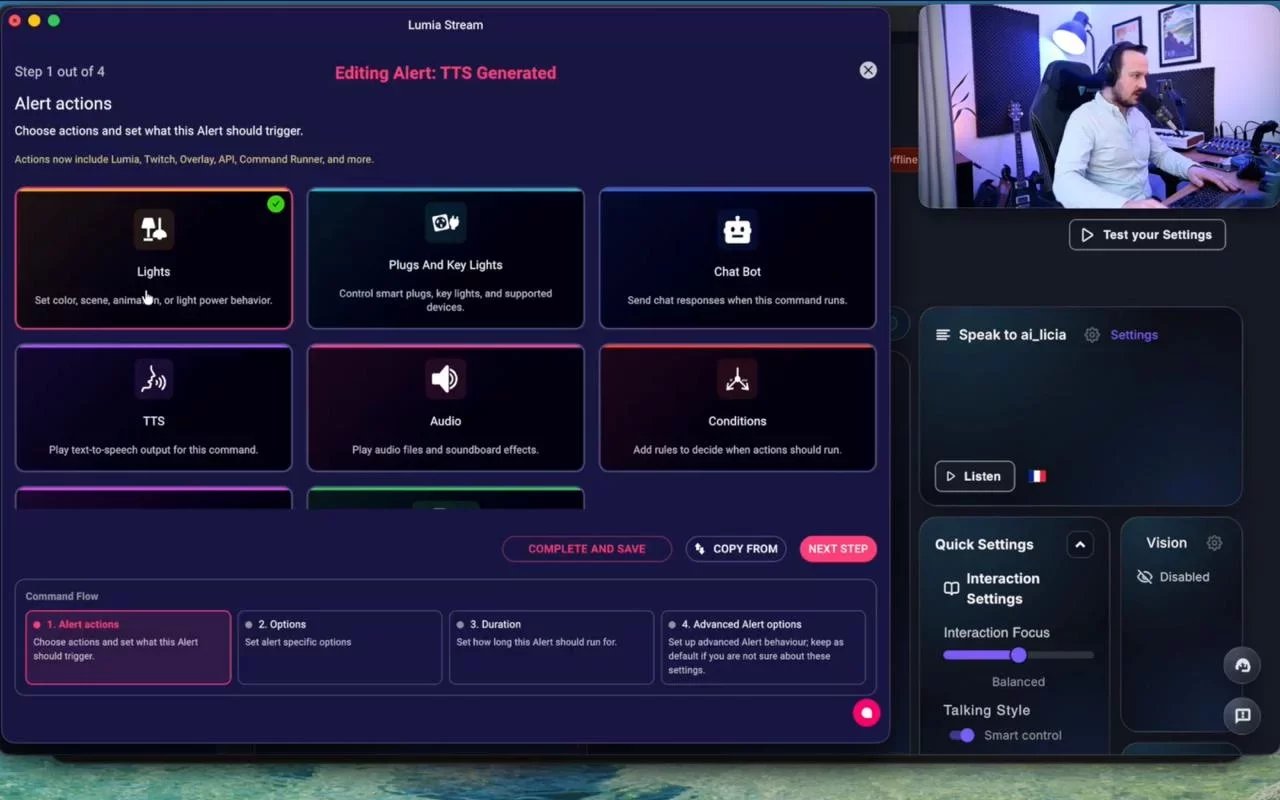
Go to Alerts.
Select ai_licia.
Choose TTS Generated from the alert list.
Enable the Base Alert.
Click Edit.
Go to Actions.
Select Lights from the list of alert actions.
This tells Lumia to trigger a lighting reaction whenever ai_licia generates TTS.
6. Choose Your Light Reaction
Once you’ve added Lights as the action, you can configure how the light reaction should behave.
For Type, select Reaction.
Technically, you can choose other types too, depending on what you want your lights to do. But for this setup, Reaction is usually the best choice because it lets you trigger a specific light reaction whenever ai_licia speaks.
In the Value field, you’ll be able to choose from the different light reactions you’ve created in Lumia, along with some default options.
For example, you could trigger:
A hype flash
A soft glow
A color pulse
A dramatic scene effect
A custom reaction you created for ai_licia moments
Pick the reaction that best matches how you want your stream to feel when AI TTS plays.
7. Adjust the Reaction Duration
You can also adjust how long the light reaction should last.
This lets you match the lighting effect to the TTS moment.
For shorter TTS reactions, you might want a quick flash or pulse. For longer AI responses, you can make the reaction last a bit longer so the lights stay synced with the moment.
A small timing adjustment can make the whole effect feel much more intentional and polished.
And you are ready to go!
A nice addition is that ai_licia supports Multi Stream, enabling you to have one central AI TTS for each platform you are live on, so don't wait any longer and give ai_licia a try for free!