Connect OBS with Lumia Stream and ai_licia for Smarter Stream Automation

Want your stream to feel more reactive, more polished, and more alive every time you switch scenes?
By combining OBS, Lumia Stream, and ai_licia, you can make scene changes trigger smart chat reactions automatically. In this guide, we’ll show you how to make ai_licia react when your OBS scene changes, announce which scene is now active, and even switch her active character based on the scene you move to.
You can also add conditions, so these automations only trigger for specific scenes.
1. Install the Lumia Stream App
First, make sure you have the Lumia Stream App installed and connected to your stream setup.
Lumia will listen for your OBS scene changes, and ai_licia will bring the reaction into chat.
This means every time you change scenes in OBS, Lumia can trigger ai_licia to respond automatically.
2. Connect OBS to Lumia Stream
Next, make sure OBS is connected to Lumia Stream.
Open your Lumia Stream dashboard and connect your OBS setup so Lumia can detect when your active scene changes.
Once OBS is connected, Lumia can use scene switches as automation triggers.
3. Get the ai_licia Desktop App
To make the setup as smooth as possible, download the ai_licia Desktop App.
This makes it easy to link your ai_licia account with your Lumia Stream App in just a few clicks.
Prefer setting things up manually? No problem. You can find your API Key and channel name in your ai_licia Dashboard under the My Account page.
4. Add the ai_licia Plugin in Lumia
Now let’s connect ai_licia to Lumia.
Open your Lumia Stream dashboard, then:
Go to Plugins from the left menu.
Search for ai_licia in the search bar.
Install the ai_licia plugin.
Once the plugin is installed, open the ai_licia Desktop App and click Auto Connect on Lumia.
This will open a validation modal inside the ai_licia App. Click Activate.
That’s it! The ai_licia plugin is now active and ready to use inside Lumia.
5. Set Up the OBS Scene Switch Alert in Lumia
Now it’s time to make ai_licia react when your OBS scene changes.
In Lumia:
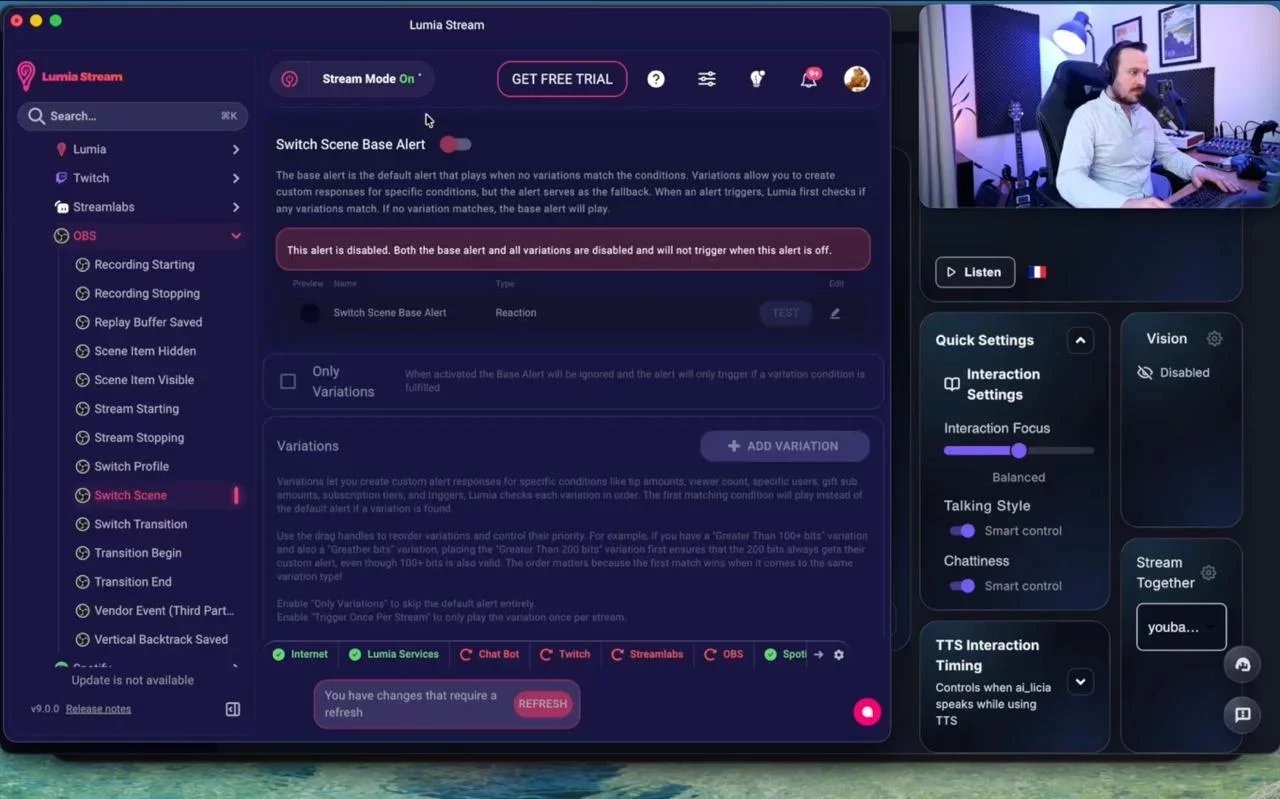
Go to Alerts.
Select OBS.
Choose Scene Switch.
Click Edit Basic Alert.
Go to Actions.
Select ai_licia as the action source.
Choose Trigger reaction in chat.
Then, add your instruction on what ai_licia should do:
Now, whenever you switch scenes in OBS, ai_licia can jump into chat and announce which scene is currently active.
For example, when you switch to your Just Chatting scene, ai_licia can let your community know the stream has moved into a more relaxed segment. When you switch to gameplay, she can hype up the next part of the stream.
6. Change ai_licia’s Active Character When a Scene Changes
You can take this one step further by changing ai_licia’s active character based on your OBS scene.
This is perfect if you want different stream moments to have different personalities.
For example, you could use one character for your intro scene, another for gameplay, and another for your ending screen.
To do this, add an ai_licia action in your OBS Scene Switch alert, then select the character you want from the Character to Activate dropdown.
Now, when that scene becomes active, ai_licia will automatically switch to the character you selected.
This lets your stream feel more dynamic without needing to manually update ai_licia every time you move between scenes.
7. Add Conditions for Specific Scenes
Want ai_licia to react only when a certain scene becomes active?
You can add conditions in Lumia to limit when the action should trigger.
For example, you can make ai_licia announce the scene only when you switch to a specific OBS scene, such as:
Starting Soon
Gameplay
Just Chatting
BRB
Ending Soon
This is especially useful if you do not want ai_licia to react to every single scene change.
Instead, you can choose the moments that matter most and keep the automation focused.
Make Scene Changes Feel Like Stream Moments
Scene switches are already a core part of every stream. But with Lumia Stream and ai_licia working together, they can become more than just a visual transition.
Lumia detects the scene change, and ai_licia reacts in chat, announces what is happening, or even changes character to match the moment.
Your stream gets an extra layer of personality, context, and automation without adding extra work while you’re live.
Set it up once, switch scenes like normal, and let ai_licia help make every transition feel smarter.