How to Choose an AI Co-Host Your Stream Will Actually Enjoy (2026)

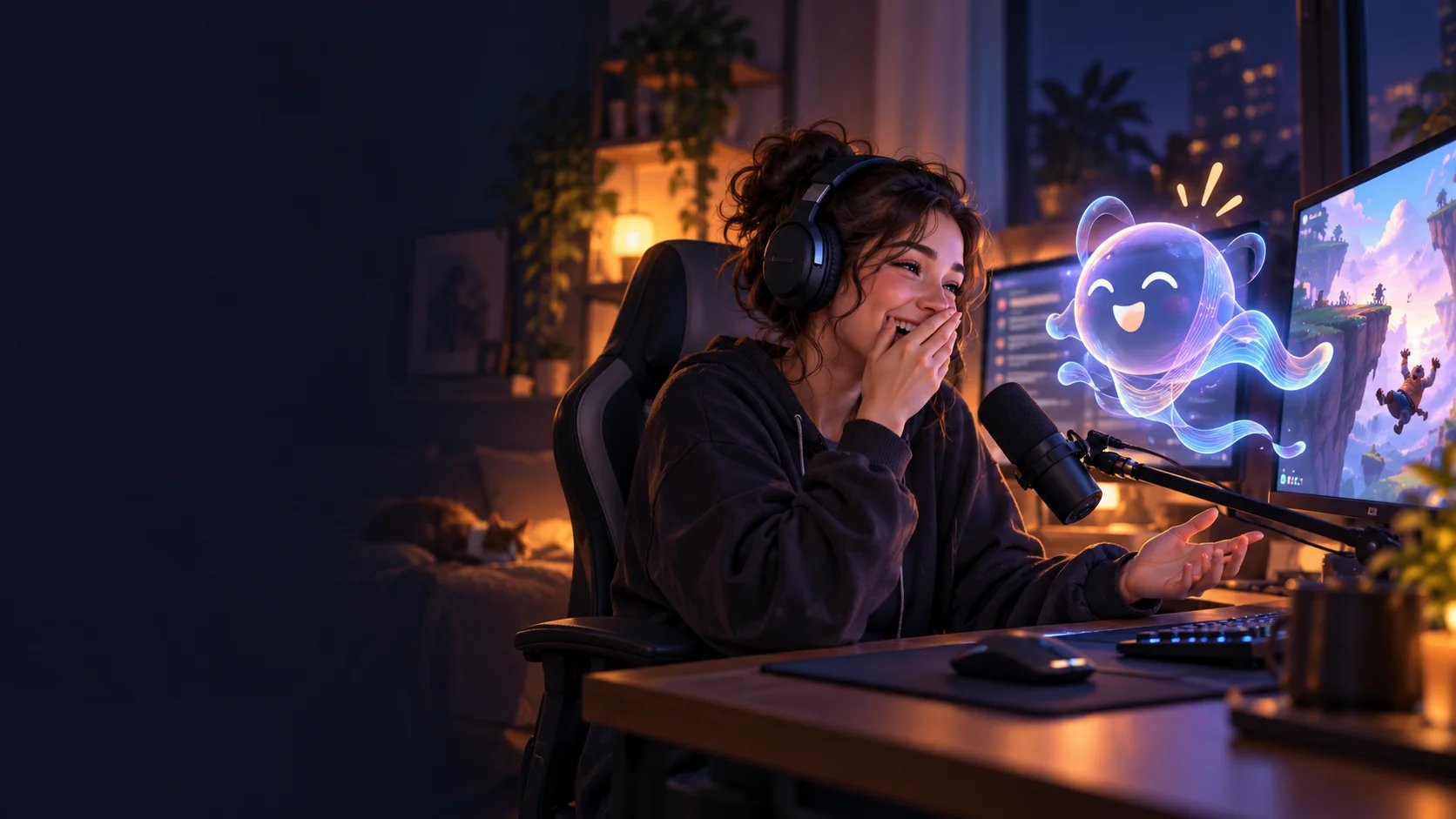
You’re halfway through a boss fight. Chat has gone quiet. You’re concentrating hard enough to forget you haven’t said anything for two minutes.
Then you die to the most avoidable attack in the game.
That’s a good moment for a co-host. Someone to react, give you a little grief, and turn the fail into something chat can join in on.
An AI co-host can help create those moments. But choosing one takes more than finding a voice you like. You need to know whether it can keep up, understand your content, and leave you room to be yourself.
Before adding another voice to your broadcast, here are seven things worth testing.
The quick checklist
When trying an AI co-host, ask yourself:
- Timing: Does it respond while the moment is still relevant?
- Awareness: Does it understand what you’re talking about or showing?
- Performance: Does your usual streaming setup still run smoothly?
- Control: Can you set boundaries and stop it speaking quickly?
- Audio: Can you balance its voice separately from your game and mic?
- Personality: Does it feel at home in your community?
- Compatibility: Do the features you need work on your platform and setup?
Start by deciding what role you want it to play. A chaotic sidekick for challenge runs needs a different personality—and different settings—from a laid-back companion for late-night crafting.
1. Can it keep up with the conversation?
You miss an easy shot.
You react. Chat reacts. You respawn.
Then your AI co-host finally comments on the shot.
The line might be funny, but the timing has gone.
When testing an AI co-host, pay attention to the rhythm of the conversation. Do you find yourself waiting for it? Does it answer a question you’ve already moved on from? Can you speak naturally without carefully taking turns?
Also check what happens when you interrupt. You need a way to take the floor when a teammate calls something out, an important alert arrives, or you simply have something to say.
Try this: Ask a short question, follow up naturally, then start speaking during its reply. Notice whether the exchange flows or makes you manage every turn.
A fast response helps. A short, relevant response helps even more.
2. Does it understand what’s happening on stream?
There’s a difference between reacting to “I died again” and seeing the spectacularly bad decision that caused it.
Screen awareness can give an AI co-host more context for gameplay, creative work, cooking, or whatever else you broadcast. It gives you something specific to talk about together.
But test the feature with your own content. Recognizing a victory screen is one thing; understanding a crowded interface or catching a brief visual gag is another.
Ask:
- What can it see: your game, a selected scene, or your whole display?
- How do you turn that access on and off?
- Does it react to what’s happening now?
- What happens when it misunderstands something?
For example, ai_licia’s Vision feature accepts a stream feed through options including a virtual camera, direct streaming or via an OBS plugin, allowing her to respond to visual context.
Try this: Show it a few moments from your actual content: a menu, a win, a fail, or a work in progress. Check whether its comments make sense without you explaining everything first.
Vision is useful when it adds something to your format. For a conversation-focused stream, listening and chat awareness may matter more.
3. Will your game and stream still run smoothly?
Your co-host could have incredible comedic timing. If switching it on makes your game stutter, you’ll probably stop using it.
Check performance with your normal setup running: game, broadcasting software, webcam, alerts, browser sources, and anything else you usually keep open.
You’ll generally encounter two approaches.
Cloud processing moves much of the AI work off your computer. Check connection quality, response delays, and the resources needed to capture and send your audio or video.
Local processing gives you more control over models and configuration. Check hardware requirements, setup effort, and how it performs alongside your game and broadcasting software.
Neither label tells you the full story. A cloud service still needs to capture and send inputs.
Try this: Record the same demanding gameplay with the co-host off, then on. Compare how the game feels, your recording, and the performance information in your broadcasting software.
Use the features you actually intend to stream with, including voice and vision.
4. Can you keep control when chat gets creative?
Give viewers an interactive character and someone will immediately try to make it say something ridiculous.
That can be part of the fun. You still need clear boundaries.
Look for controls over who can trigger spoken responses, how frequently the AI speaks, which topics it should avoid, and how you stop it immediately.
If you want playful roasting, define what that means for your channel. Teasing you about your terrible inventory management is a different experience from picking on a new viewer.
Ask providers how they handle attempts to override those boundaries through chat messages. Treat safety features as something to configure and test.
Try this: Send an off-topic request, a repeated command, and a message asking it to ignore its character instructions. Then practise stopping its audio while you’re playing.
You should be able to regain control without hunting through a dashboard.
5. Can viewers hear everyone clearly?
A co-host is another voice in your mix. It needs its own space.
You should be able to lower it without lowering the game, hear it clearly in your headphones, and keep it from overpowering you or your teammates.
If you edit stream recordings, check whether you can keep the co-host on a separate audio track. That gives you more flexibility when cutting clips or making longer videos.
Your routing options depend on your operating system and setup. OBS provides guides for capturing individual applications on Windows and macOS.
Try this: Record a minute with game audio, your mic, and the AI speaking. Listen back as a viewer would.
Check for echo, doubled voices, uneven volume, and words getting buried during loud moments. A voice that sounds great in a preview still needs to work in your mix.
6. Does its personality belong in your channel?
“Be funny” is a difficult brief. “You’re a smug spaceship computer who keeps track of my failed landings” gives a character something to work with.
Think about the role your community would enjoy:
- A competitive rival who remembers your questionable predictions.
- A relaxed companion for building and crafting streams.
- An enthusiastic commentator for challenge runs.
- A character who belongs in your VTuber lore.
Give it a few useful details: recurring jokes, preferred names, topics to avoid, and how much teasing is welcome.
Then listen for restraint. Does it repeat the same joke? Turn every reply into a speech? Keep bringing the conversation back to itself?
Try this: Give it a detailed backstory and talk with your character. See whether it the answers feels relevant with the backstory you gave without being cliché.
Audition the voice for longer than a sample sentence, too. You’ll be hearing it for entire streams.
7. Does it work with the way you stream?
A platform logo on a website is a starting point. Check the specific interactions you want.
Can viewers talk to it in chat? Can it hear you? Which alerts can it respond to? Does it work across multiple chats at once, and is that included in your plan?
Also check your operating system, broadcasting software, language, and any avatar or automation tools you depend on.
For instance, ai_licia supports Twitch, YouTube, Kick, and TikTok, alongside voice interaction, customizable characters, and community memory. Check the features and plan options against your own setup before choosing.
Try this: Write down your three must-have interactions and test each one end to end. “A viewer asks a question in chat and gets a spoken reply” is much more useful than a checkbox marked “chat integration.”
What should you pay for an AI co-host?
Compare the cost against your actual streaming schedule.
A few weekend streams and five long broadcasts a week are very different usage patterns.
With credit-based pricing, check what consumes credits, whether they expire, and what happens when you reach the limit. With subscriptions, check stream limits, voice options, vision access, and any multistreaming add-ons.
Neither pricing model tells you the whole cost on its own.
Use a typical month as your benchmark: how often you stream, for how long, and which features you’ll keep enabled. For ai_licia, the pricing page lists plan allowances and optional extras.
The useful question is: What will my normal month of streaming actually cost?
Find a co-host you enjoy streaming with
Choose an AI co-host that gives you useful things to react to, understands enough of your content to contribute, and lets you stay in control.
Your enjoyment matters here. If you like bouncing ideas off it, teasing it, or bringing it into a running joke, you have something worth trying with your community.
Want to see how ai_licia fits your channel? Create your co-host, give her a role, and bring her into a test recording.
Start with one question: Would this be fun to do again next stream?